Troubleshooting BitLocker errors
If there are errors on a device where an encryption has been installed, they are reported during inventory. The errors are listed in the Security view for a selected device. For example, an error appears if a managed device does not permit silently enabling Microsoft BitLocker, and it is waiting for an administrator to enable it.
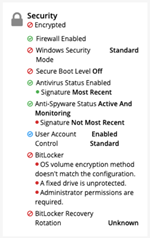
When you select a device for which MS BitLocker errors are reported, you can see them listed in the Security card of the following views:
- The in the Summary view:
- The Device Details view:
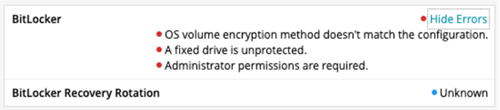
BitLocker reports the following errors:
- Device user has not consented.
- OS volume encryption method does not match the configuration.
- OS volume is unprotected.
- BitLocker requires a TPM only for the OS volume, but TPM protection is not used.
- BitLocker requires TPM and PIN protection for the OS volume, but a TPM and PIN protector is not used.
- BitLocker requires TPM and startup key protection for the OS volume, but a TPM and startup key protector is not used.
- BitLocker requires TPM and PIN and startup key protection for the OS volume, but a TPM and PIN and startup key protector is not used.
- BitLocker requires a TPM protector to protect the OS volume, but a TPM is not used.
- Recovery key backup failed.
- A fixed drive is unprotected.
- Fixed drive encryption method does not match the configuration.
- Administrator permissions are required.
- Windows Recovery Environment (WinRE) is not configured.
- A TPM is not available for BitLocker.
- The TPM is not ready for BitLocker.
- The network is not available.
The standard Windows MDM device log in the Event Viewer contains entries when an encryption configuration is applied to the device. To see the log contents, in the Event Viewer, go to Applications and Services Log > Microsoft > Windows > DeviceManagement-Enterprise-Diagnostics-Provider. The log highlights any issues with the profile that is sent to the managed device.

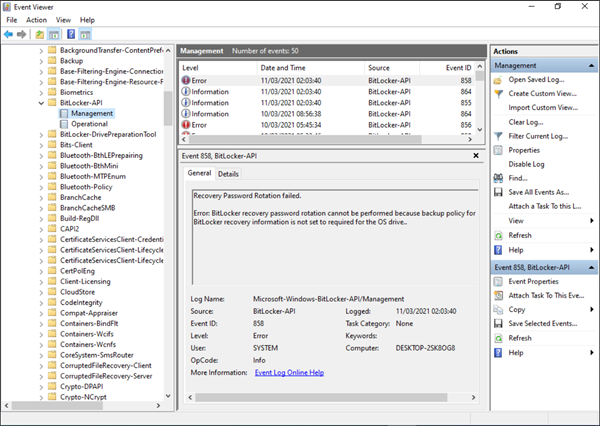
For specific BitLocker errors, there is a separate log in the Event Viewer. To see the log, in the Event Viewer, go to Applications and Services Log > Microsoft > Windows > BitLocker-API. In the following example, the recovery data rotation command fails because the configuration is not set up properly. Recovery rotation requires that recovery information be backed up to Active Directory domain services and that BitLocker not be enabled until backup succeeds.